Open Control Panel
Click on Performance and Maintenance.
Click on System.
Then click on the Advanced tab
Click on the error-reporting button on the bottom of the windows.
Select Disable error reporting.
Click OK
Click OK
Thursday, July 29, 2010

Modify the Windows XP System Properties logo
The Windows XP System Properties logo is often changed by computer manufacturers. Hardware vendors use this general system information dialog to brand your computer with their own logo and support contact information
To invoke the system properties dialog, click the Start button, right-click "My Computer" and select "Properties"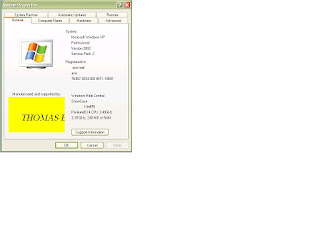 If you want to put your own graphic in there, you should create your image in a .bmp graphic file. It's also a good idea to create this bitmap image with the same background shade of gray (RGB: 192, 192, 192) used in the Properties dialog. Otherwise, you risk letting Windows make its own judgments regarding color contrast and background shading.
The next thing to consider is the image size. The system properties dialog only offers enough real estate for an image of about 180 (wide) x120 (high) pixels. Make sure that you can fit your logo in this area.
Once you have created your logo and saved it as a .bmp file, copy it over to the system32 subfolder of your Windows system folder. If you don't know where your system folder is :
Click the Start button and select "Run"
In the "open" field, enter "cmd" (without the quotes) and click ok
Windows will open up a dos command window
In the command window, type "set system" (without the quotes)
Look for the line that contains "SystemRoot", this is where your system directory is (generally, the Windows XP system folder is c:\windows)
Now that you know where your system folder is, copy your logo image file over to the system32 subfolder of your system folder. Then rename your logo image file to oemlogo.bmp
go to this web site
http://www.windows-help-central.com/xp-system-properties-logo.html
To invoke the system properties dialog, click the Start button, right-click "My Computer" and select "Properties"
If you want to put your own graphic in there, you should create your image in a .bmp graphic file. It's also a good idea to create this bitmap image with the same background shade of gray (RGB: 192, 192, 192) used in the Properties dialog. Otherwise, you risk letting Windows make its own judgments regarding color contrast and background shading.The next thing to consider is the image size. The system properties dialog only offers enough real estate for an image of about 180 (wide) x120 (high) pixels. Make sure that you can fit your logo in this area.
Once you have created your logo and saved it as a .bmp file, copy it over to the system32 subfolder of your Windows system folder. If you don't know where your system folder is :
Click the Start button and select "Run"
In the "open" field, enter "cmd" (without the quotes) and click ok
Windows will open up a dos command window
In the command window, type "set system" (without the quotes)
Look for the line that contains "SystemRoot", this is where your system directory is (generally, the Windows XP system folder is c:\windows)
Now that you know where your system folder is, copy your logo image file over to the system32 subfolder of your system folder. Then rename your logo image file to oemlogo.bmp
Additionally you can create a new file in this same folder and name the new file oeminfo.ini
In this file you can enter your contact information like in the example below :
type like this:
[General]
Manufacturer=Windows Help Central
Model=ShowCase
[Support Information]
Line1=" "
Line2=" For support, sales, upgrades or questions:"
Line3=""
Line4=" THOMAS B"
Line5="SERVICE ENGINEER "
Line6=" KERALA"
Line7=""
Line8=" +1 (888) 888-888 (voice)"
Line9=" +1 (888) 888-889 (fax)"
Line10=""
Line11=""
Line12=" http://thomasnetworking.blogspot.com/"
Save and close the file and you are ready. From now on, if someone opens up the system properties dialog, your own Windows XP System Properties logo is in there.
go to this web site
http://www.windows-help-central.com/xp-system-properties-logo.html
Thursday, July 15, 2010
Remote desktop software
Remote desktop software in LAN
softawre name radmin 2.2
you can access other system desktop without login off client system
admin system install full software and client system install only radmin server 2.2
download software this url
http://usfiles.brothersoft.com/internet/remote_control_software/radmin22.zip
radmin 2.2 key : 08mi6OFGZ7xOssk3ECduXquHrrfBQksiZK0BHfuF17GAXvJybPiTRTCm7tsnRkyGTs-VSDTEzQjAe7BtlsguDiq1
softawre name radmin 2.2
you can access other system desktop without login off client system
admin system install full software and client system install only radmin server 2.2
download software this url
http://usfiles.brothersoft.com/internet/remote_control_software/radmin22.zip
radmin 2.2 key : 08mi6OFGZ7xOssk3ECduXquHrrfBQksiZK0BHfuF17GAXvJybPiTRTCm7tsnRkyGTs-VSDTEzQjAe7BtlsguDiq1
Monday, July 5, 2010
office 2010 supported os details
1.Windows XP with Service Pack (SP) 3 (32-bit)
2.Windows Vista with SP1 (32-bit or 64-bit)
3.Windows Server 2003 R2 (32-bit or 64-bit) with MSXLM 6.0 installed
4.Windows Server 2008 with SP2 (32-bit or 64-bit)
5. Windows 7 (32-bit or 64-bit)
6.Terminal Server and windows on Windows (WOW) (which allows installing 32-bit versions of Office 2010 on 64-bit operating systems) are supported.
2.Windows Vista with SP1 (32-bit or 64-bit)
3.Windows Server 2003 R2 (32-bit or 64-bit) with MSXLM 6.0 installed
4.Windows Server 2008 with SP2 (32-bit or 64-bit)
5. Windows 7 (32-bit or 64-bit)
6.Terminal Server and windows on Windows (WOW) (which allows installing 32-bit versions of Office 2010 on 64-bit operating systems) are supported.
Friday, June 25, 2010
convert fat to ntfs
go to command prompt type convert(driver letter):/fs:ntfs
eg: c:/fs:ntfs
each drive do this
How to Convert a FAT Partition to NTFS
convert a FAT partition to NTFS, perform the following steps.
Click Start, click Programs, and then click Command Prompt.
In Windows XP, click Start, and then click Run.
At the command prompt, type CONVERT [driveletter]: /FS:NTFS.
Convert.exe will attempt to convert the partition to NTFS.
Subscribe to:
Posts (Atom)